
[INDEX] // ALL_DOCS ›
[TOC] // ON_THIS_PAGE ›
machine.dev supports team-based collaboration. Each team has members with roles that control what they can do on the platform. This guide covers how to view, invite, and manage team members from the dashboard.
Roles
machine.dev teams have two roles:
| Role | Description |
|---|---|
| Admin | Full access to team settings, billing, GitHub integrations, and member management. Can invite new members and change existing members’ roles. |
| Member | Can use the platform to run GPU workflows and view jobs, but cannot modify team settings or manage other members. |
When you create a team, you are automatically assigned the Admin role.
Viewing team members
To see who is on your team:
- Open the machine.dev dashboard
- Click “Settings” in the sidebar
- Go to “Team” > “Members”
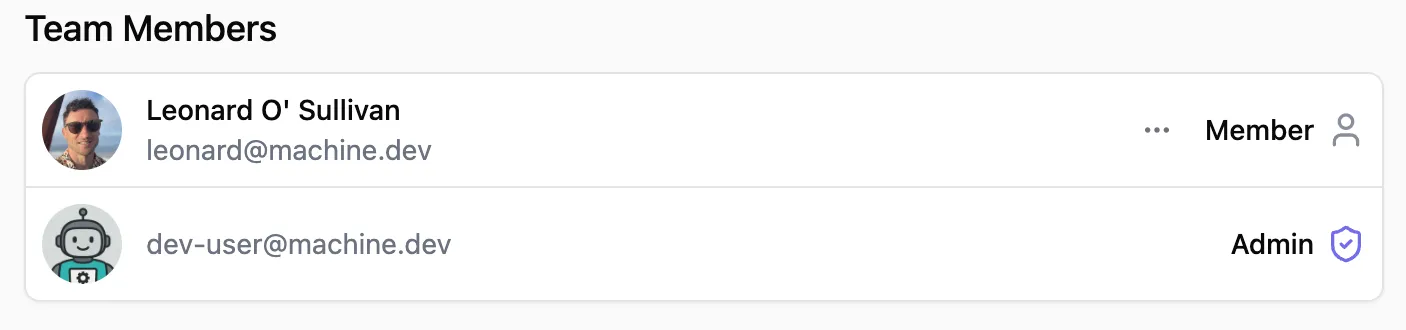
The members table shows each user’s name, email, and current role. Role badges indicate access level: a shield icon for Admin and a user icon for Member. Pending invitations appear with an amber “Invited” badge.
Inviting members
Admins can invite new members:
- Go to “Settings” > “Team” > “Members”
- Click “Invite”
- Enter the email address of the person you want to invite
- Pick a role for the new member
- Click “Send Invite”
The invited user gets an email with instructions to join. Until they accept, they appear in the members table with an “Invited” badge.
Changing a member’s role
Admins can promote members to admin or demote admins back to member:
- Go to “Settings” > “Team” > “Members”
- Find the member whose role you want to change
- Click the ”…” action button on their row
- Pick the new role from the dropdown: Admin or Member
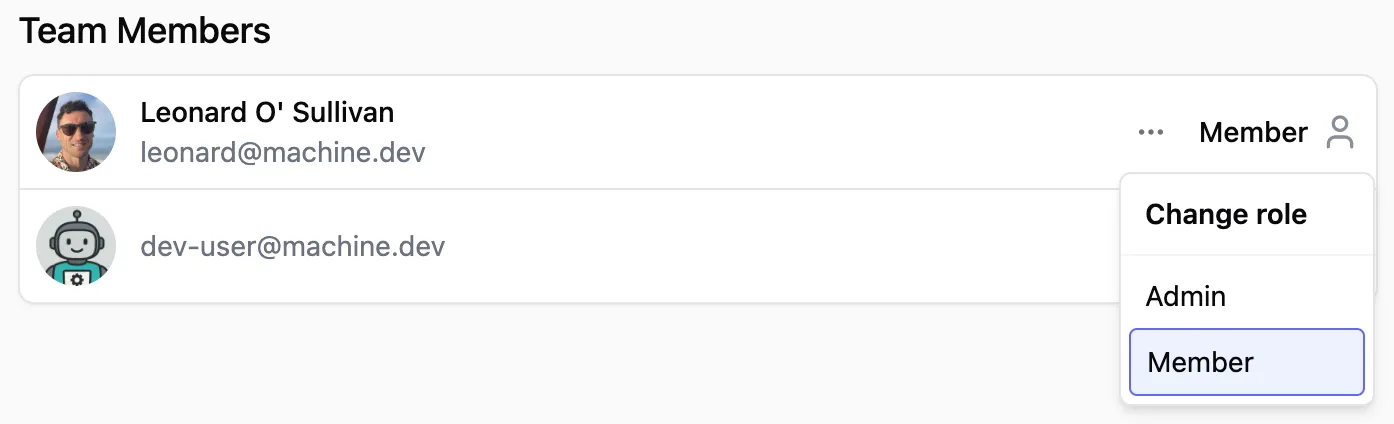
The current role is highlighted with an indigo border. While the change saves, a loading spinner replaces the action button. The member’s role badge updates as soon as it’s done.
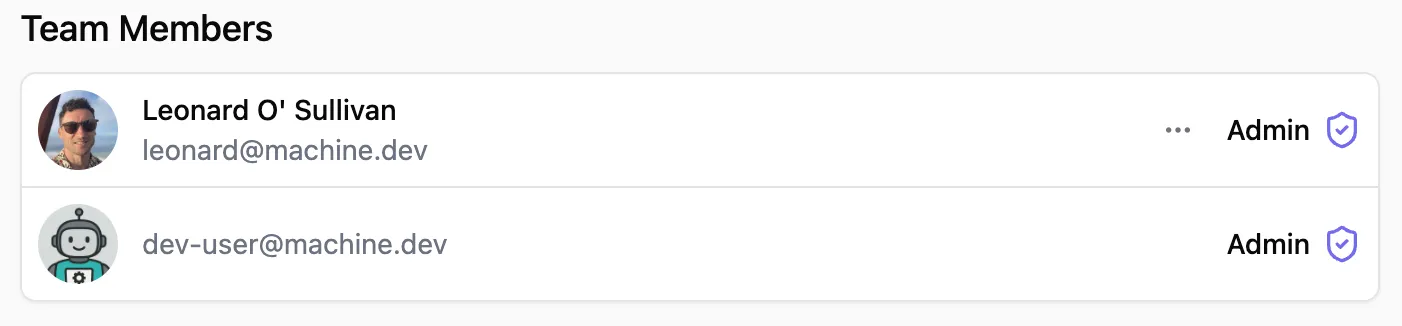
Role changes take effect immediately. The member’s permissions update as soon as the change is saved. No page refresh or re-login required.
Constraints
Two restrictions on role changes:
- You cannot change your own role. This prevents a team from accidentally losing all admins. The action button does not appear on your own row.
- You cannot change the role of pending invitations. The action button only appears for members who have accepted their invite.
Demoting yourself is not possible through the UI or the API. To step down as admin, another admin must change your role.
Role permissions
| Permission | Admin | Member |
|---|---|---|
| Run GPU workflows | Yes | Yes |
| View jobs and usage | Yes | Yes |
| Manage team settings | Yes | No |
| Invite new members | Yes | No |
| Change member roles | Yes | No |
| Configure billing and auto top-up | Yes | No |
| Open Stripe billing portal and manage invoices | Yes | No |
| View Cost Explorer and Spot & Savings | Yes | Yes |
| Manage GitHub integrations | Yes | No |
Concurrency and balance are shared across the team’s repositories and workflows. See Billing & limits for paid and non-paying limits, auto top-up and invoice access.
Next steps
- Set up your first workflow with the Workflow Setup guide
- Learn about Cost Optimization to manage your team’s GPU spending
- Review Pricing to understand how billing works across your team